Makewright adds guided configuration, server-verified pricing, Shopify checkout, and a workshop quote workflow to made-to-order products. Use this guide to launch your first product and operate it with confidence.
Quick start
Launch one complete product before adding the rest of your catalog.
- 1Create a template
Define the choices a shopper can make.
- 2Add pricing and routing
Decide what can check out and what needs review.
- 3Publish and assign
Connect the template to an active Shopify product.
- 4Install the app block
Add Makewright to the product template in your theme.
- 5Test both paths
Complete one checkout and one workshop quote.
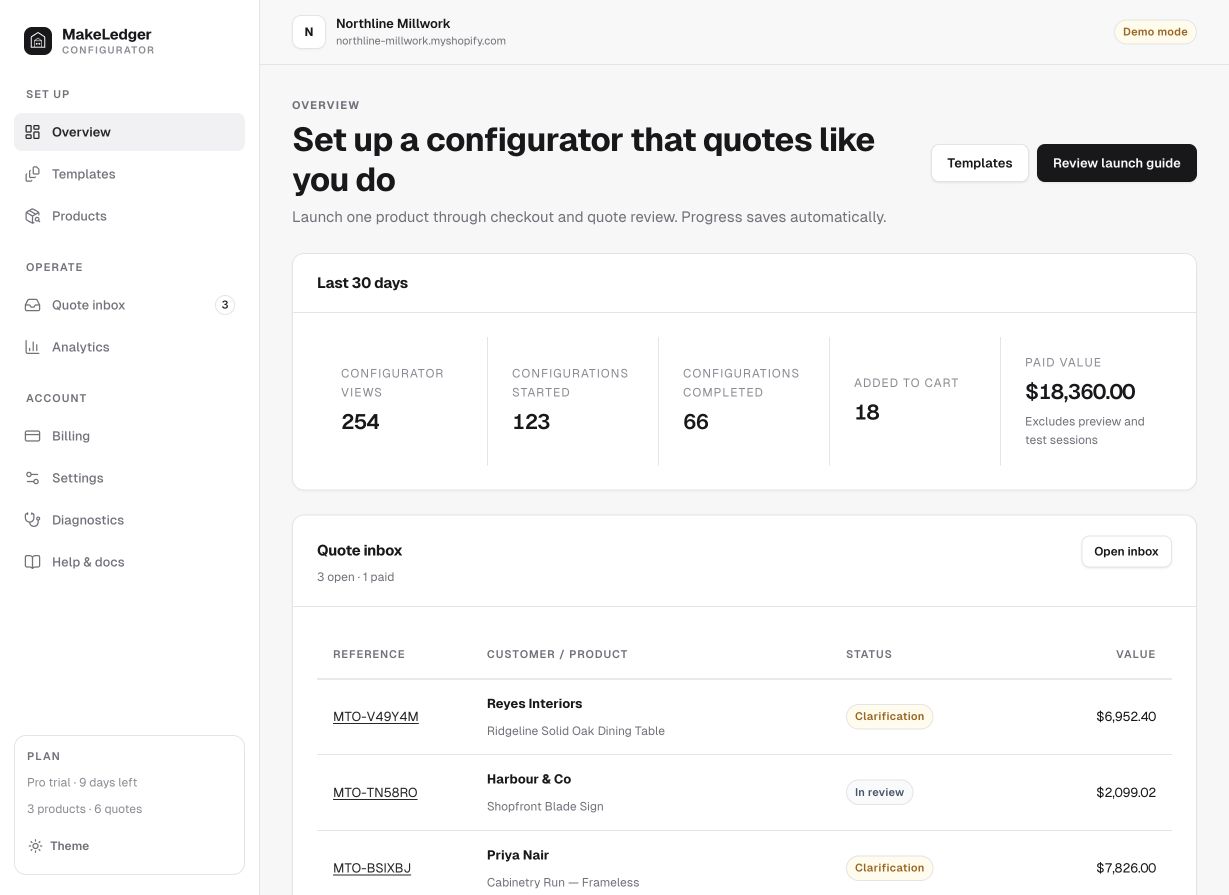
Build a template
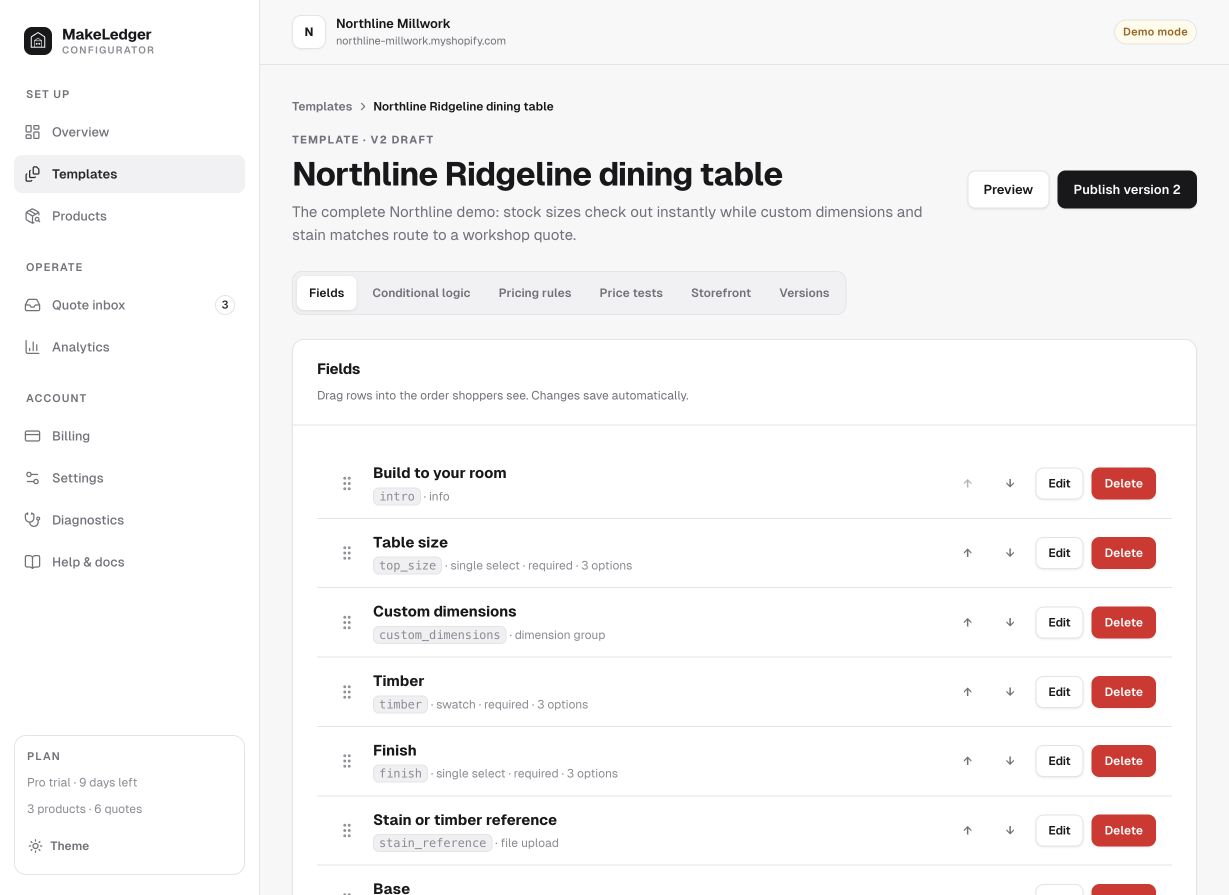
A template is the reusable specification behind a configurator. Start from a starter or create one from scratch, then add fields in the same order a customer should answer them.
Single select, multi-select, swatches, and checkboxes.
Numbers and dimension groups with units and limits.
Text, notes, quantities, and customer file uploads.
Show or require fields only when earlier answers make them relevant.
Use plain customer-facing labels. Keep internal keys short and stable because pricing rules and historical configurations refer to them.
Set pricing and order routing
Makewright calculates prices on the server. Use fixed, per-unit, dimensional, tiered, percentage, minimum, or formula rules to match how your shop estimates work.
The configured product is added to the Shopify cart with its selections attached.
The full specification enters the quote inbox for review before a draft order is sent.
A field can force a quote—for example, selecting Custom size or requesting installation. Add price tests for representative combinations before publishing so future edits cannot silently change expected totals or routes.
Publish and assign products
- Run the template’s price tests and resolve any validation errors.
- Publish the draft. Published versions remain immutable for reliable quote history.
- Open Products, select an active Shopify product, and assign the template.
Removing an assignment hides the configurator without deleting its templates, quotes, or history.
Go to Products →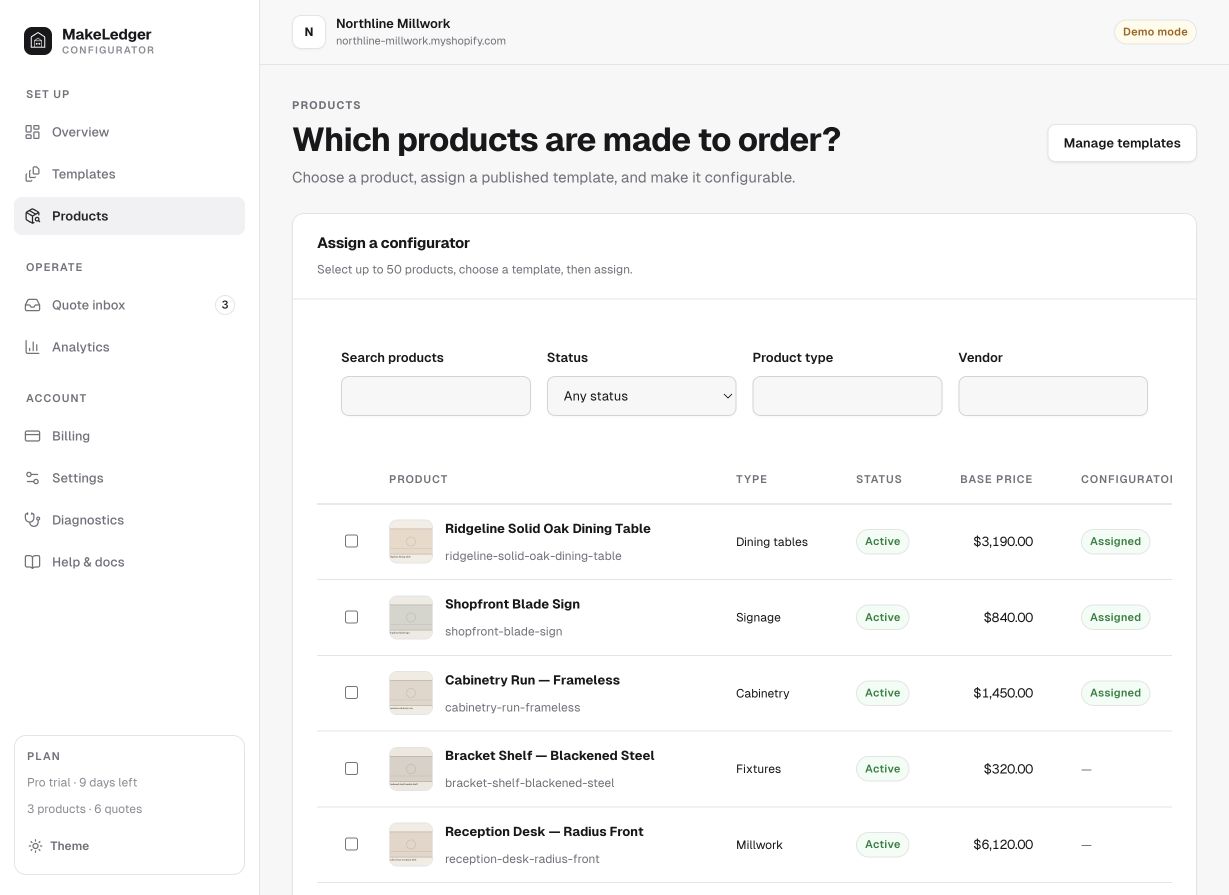
Install it on your storefront
- Open Diagnostics and select your published Online Store 2.0 theme.
- Open the Shopify theme editor from Makewright.
- On the product template, add the Makewright Configurator app block.
- Place it near the product form, save the theme, and open an assigned product.
Makewright does not edit theme files. Legacy Liquid product templates need an Online Store 2.0 JSON template before the app block can be installed.
Manage workshop quotes
Every request keeps the shopper specification, price trace, files, messages, and published rule version together.
- Review the specification and request clarification when needed.
- Adjust commercial terms and approve the quote.
- Create or update the Shopify draft order from the approved quote.
- Send the invoice. Makewright marks the quote Converted after Shopify reports payment.
Re-approving changed terms updates the existing draft order instead of creating a duplicate.
Open Quote inbox →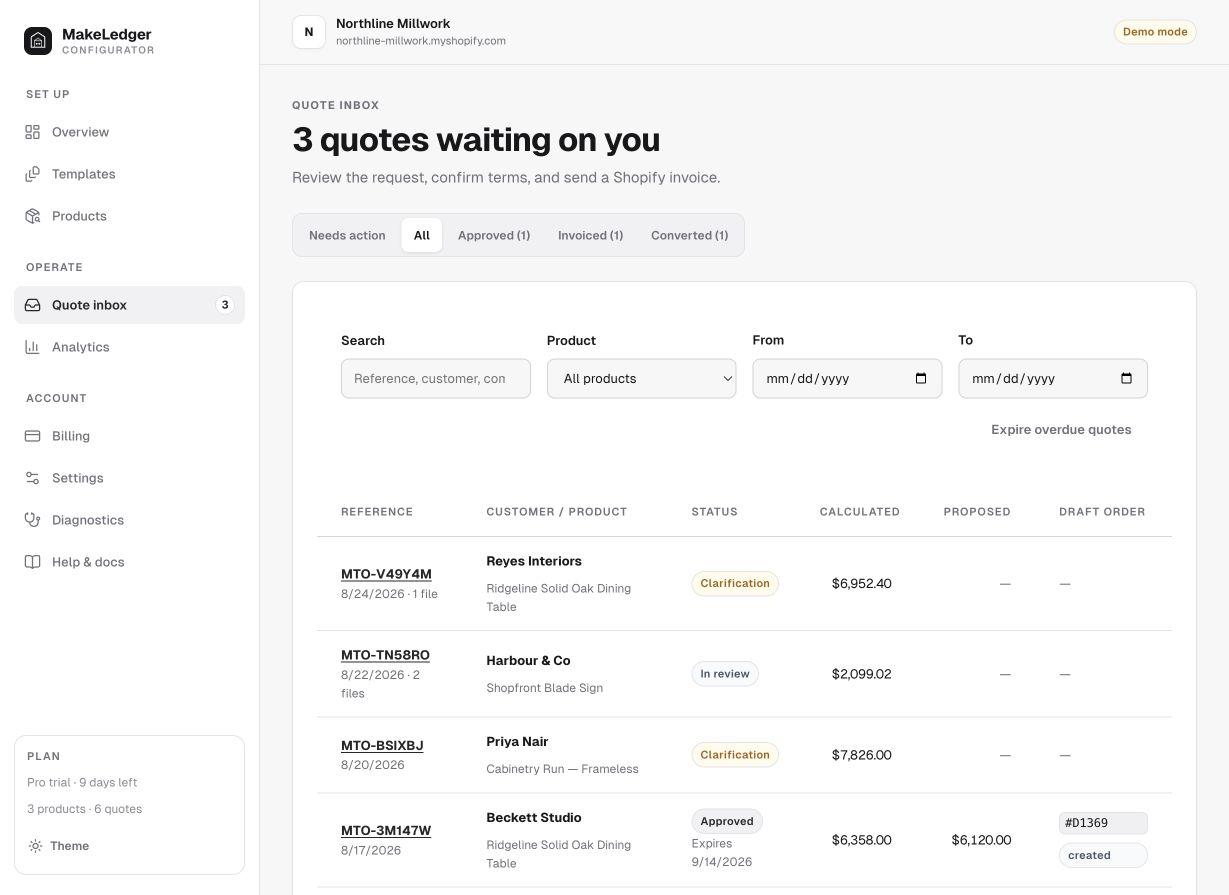
Test before launch
Configure a stock option, add it to cart, and confirm selections and price.
Select a quote-forcing option and submit a real test request.
Approve the request, create the draft order, and send its invoice.
Complete test checkout and confirm the quote becomes Converted.
Troubleshooting
The configurator is not visible
Confirm the product has an active assignment, its template is published, and the app block is saved on the product’s current theme template.
A configuration takes the wrong path
Review force-quote fields and conditional rules, then add a price test that covers the exact combination.
A quote email did not arrive
Check the merchant notification address in Settings, then review the email provider result in Diagnostics.
A draft order did not update
Open the quote timeline for the Shopify response. Re-approve the latest terms before retrying the draft order.
Still stuck? Run Diagnostics, then email ggray225@gmail.com with your store domain, product, template, and quote reference.